
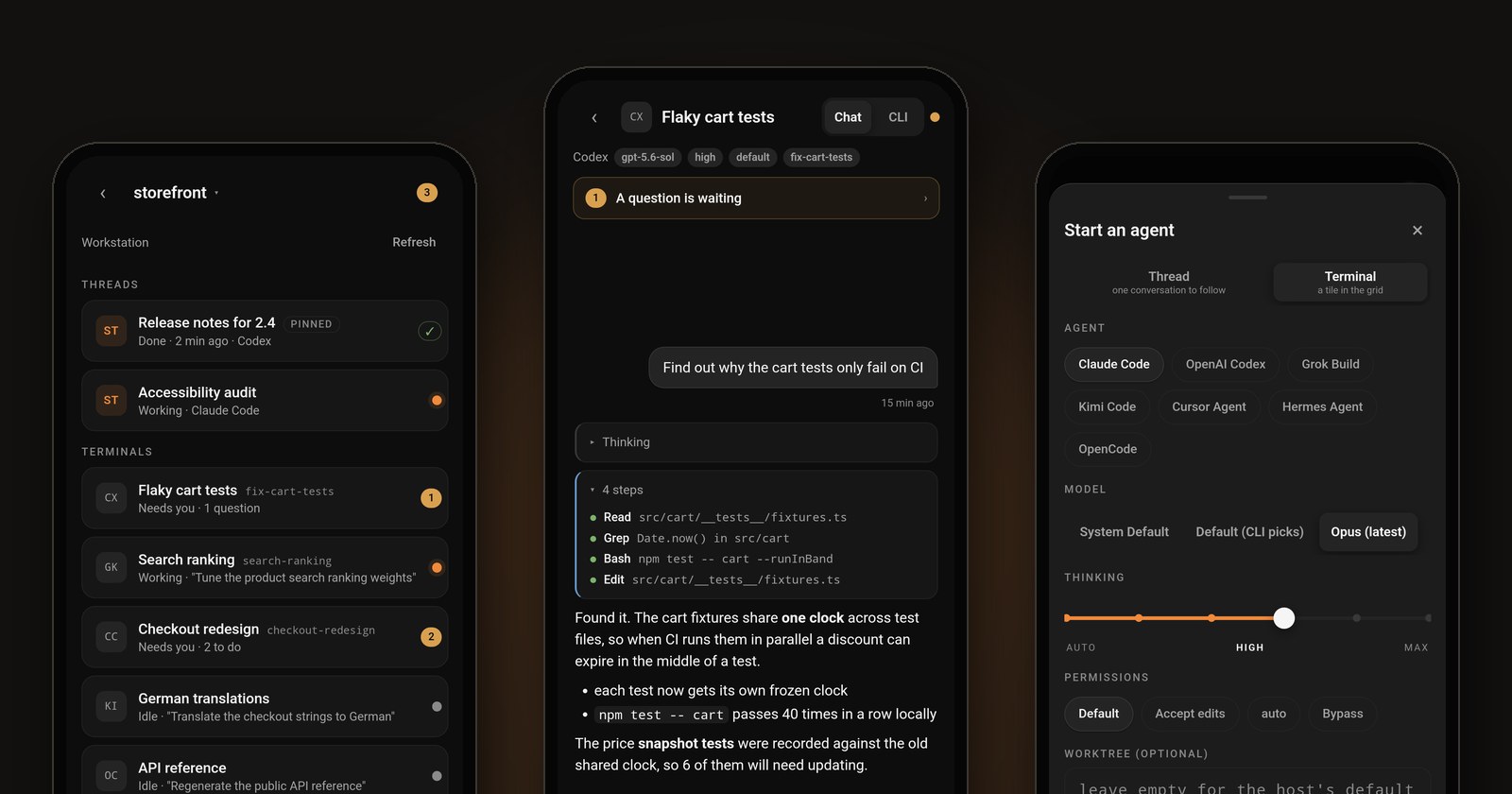
I want to start with the most expensive five minutes in my week.
I set up four agents on a real piece of work, I check that each one has a clean task and its own worktree, and I go make lunch. I come back forty minutes later expecting four finished branches. What I actually find is one finished branch and three agents that each stopped about ninety seconds after I walked away, to ask me a question. "Should I update the migration too, or leave it for a follow-up?" Forty minutes of compute I was happy to pay for, sitting idle behind a yes-or-no answer.
None of the agents did anything wrong. They asked, which is exactly what I want them to do when the call is mine to make. The problem was me: I was the bottleneck, and I was in the kitchen.
So we built the fix, and it is very nearly ready to ship. The Wrenspace Companion is a phone app that pairs with your Wrenspace dock and puts every one of your agent terminals in your pocket. It is coming to the Google Play Store first, and iOS follows soon after. This post walks through everything it does, and the one design rule we refused to bend while building it.
The rule: the phone doesn't care which agent you run
Wrenspace has always been provider-agnostic. The dock runs Claude Code, OpenAI Codex, Hermes, Grok Build, Kimi Code, OpenCode, Cursor, and any custom CLI you define, side by side in one grid. A companion app that only spoke to one of those would have been a step backwards, and frankly it would have been the easy version to build.
So the phone holds no list of providers of its own. When you start an agent from your phone, every choice you see (which agents, which models, which thinking levels, which permission modes) comes straight from your dock, which reads it from the CLIs you actually have installed. Add a provider on your desktop and it shows up on your phone. A new model ships from one of the labs, your CLI picks it up, and the phone offers it the next time you connect. Nobody had to ship an app update for any of that.
That matters for a reason that goes beyond convenience. The labs leapfrog each other every few months. The best coding model this spring was not the best one this summer, and I would bet good money it won't be the best one next spring either. Your workflow shouldn't have to be rebuilt every time that happens, and neither should your phone. You keep your own subscriptions, your own API keys and your own CLIs. Wrenspace sits around them, on the desk and now in your pocket.
Pairing takes one tap and two matching numbers
Open the app on the same Wi-Fi as your desktop and your dock appears under "On this network". Tap it. Your phone and your desktop both show the same six-digit number. Check that they match, tap They match on the phone, click Allow on the desktop, and you're paired. No account to link, no code to type, no QR code to line up.
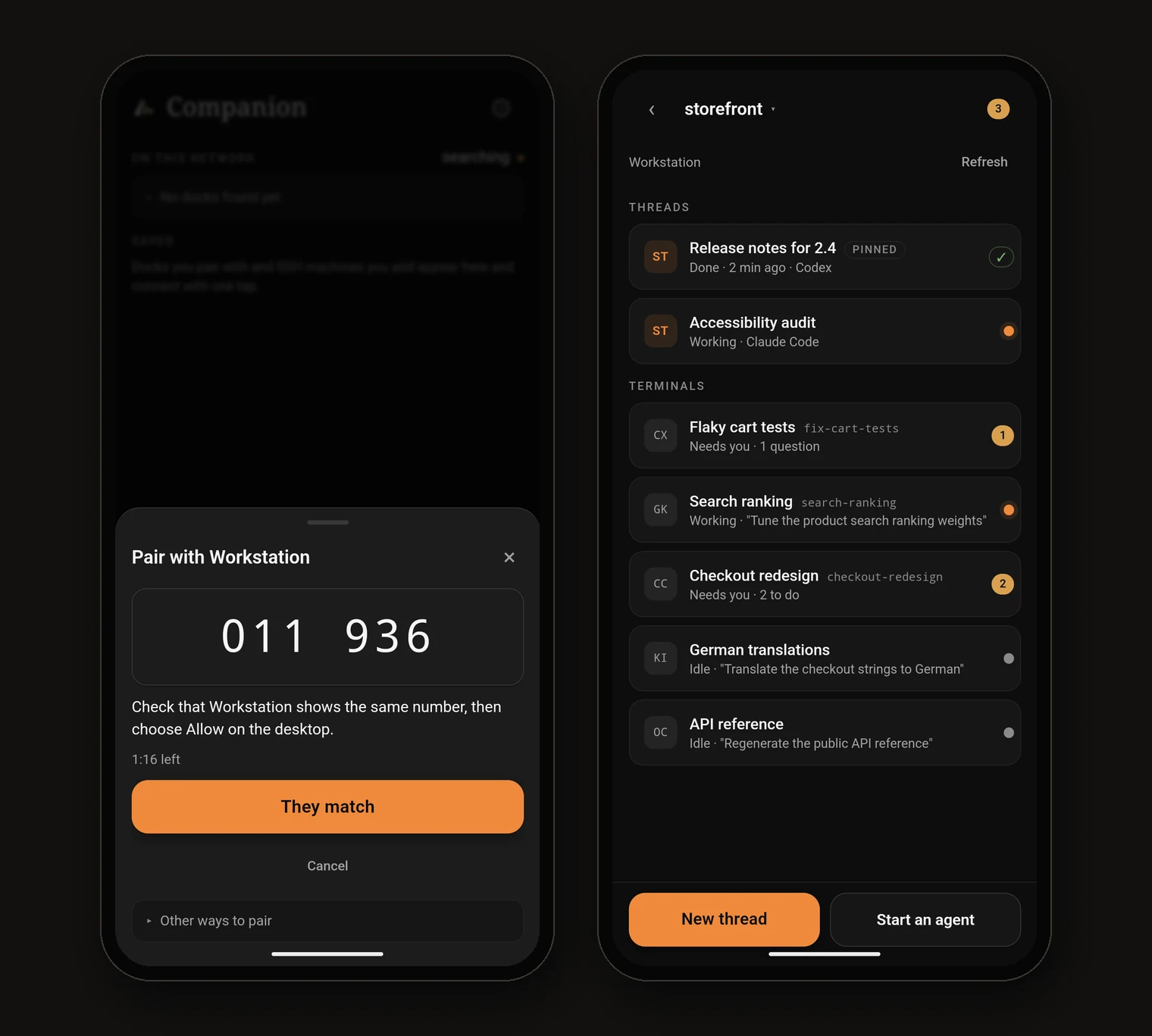
Pair with one tap, then land in your workspace. Every screenshot in this post is the Android build, connected to a demo workspace.
If you prefer, you can still pair the classic way: scan a QR code or type a one-time code the dock mints for you, or use a workspace password you set yourself.
Under the hood this is the part I'm proudest of, so indulge me for one paragraph. The phone talks to your own dock, directly, over TLS pinned to your dock's certificate. Your terminals and transcripts don't pass through a Wrenspace relay on the way. Each phone gets its own device key, and after the first pairing it reconnects by proving it holds that key. The six digits are derived from the exact certificate the phone saw, so a machine sitting in the middle would produce different numbers on each screen, and pairing needs a yes from BOTH screens: the phone's confirmation stops an impostor desktop, and the desktop's Allow stops a stranger's phone. The desktop dialog even opens with Deny focused, not Allow. If you click Deny, that phone can't ask again for fifteen minutes, and you can revoke any paired phone from the dock's Companion panel at any time.
You don't need to know any of that to use it. I just want you to know it's there.
One screen that shows what needs you
Once you're connected, you pick a project (local ones, and the ssh:// projects your dock has open on remote machines) and you get a live roster of every terminal in it: which agent, whether it is working or idle, and a Needs you count at the top.
That count is the whole reason the app exists. Every open question and every pending action across the workspace lands in one inbox. An agent asking "migration now or follow-up?" shows up as a card with the choices it offered, and you answer it with a tap, or type a free answer when none of the options fit. When an agent hands you a checklist of things only a human can do, you tick the items off right there.
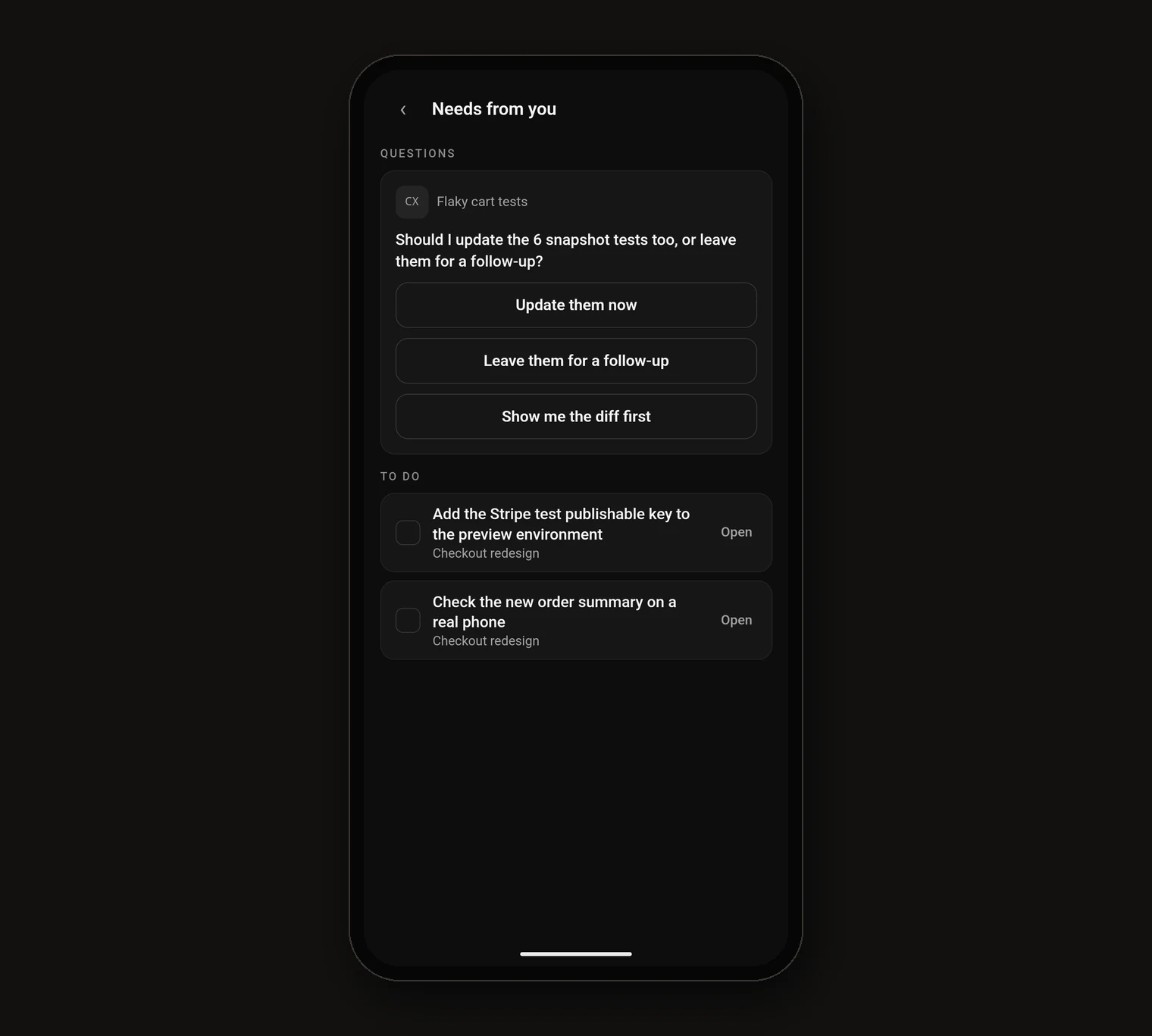
One inbox for every question and every to-do, across all your agents.
My lunch problem from the top of this post now costs me about four seconds and one hand.
Two ways to read an agent: chat and terminal
Tap into a terminal and you get the same two faces you know from the desktop.
The chat face is the readable one. Your prompts, the agent's prose, its thinking folded away until you want it, each run of tool calls collapsed into one tidy line, diff summaries, plans and questions, all rendered for a narrow screen. It runs on the same conversation logic the desktop uses, imported rather than rewritten, so the phone and the desk tell exactly the same story about what happened.
The terminal face is a live mirror of the real CLI, at the size your dock runs it. Pinch to zoom between fit-to-width and full size, and use the key bar for the keys a phone keyboard forgets: Esc, Tab, Ctrl+C, the arrows and Enter. Whatever the CLI draws on your desktop, you see on your phone. That's what makes the terminal face work with every provider, including the custom adapter you wrote for an in-house tool.
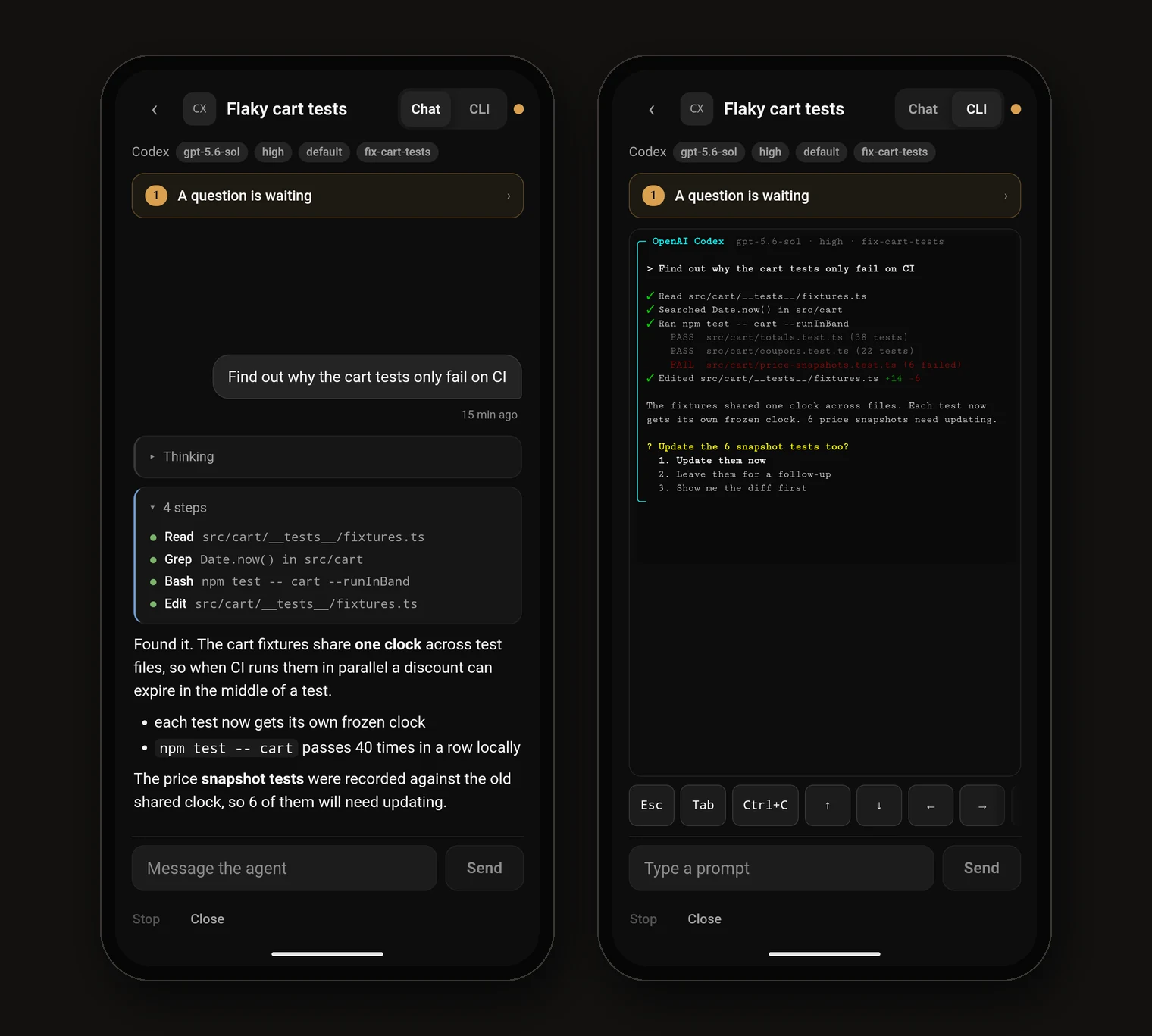
The same agent, read as a conversation or as the terminal itself.
Either way, there's a composer at the bottom. Send a follow-up, steer the agent, or hit Stop. Stop interrupts the agent and, if your last prompt hadn't really been acted on yet, hands that prompt back to your composer so you can fix the typo and resend instead of retyping it on glass.
Start new work from anywhere
You can also start agents from your phone, and not as a cut-down "quick prompt" box. Start an agent opens a sheet with everything the desktop gives you: pick the agent, the model, the thinking level, the permission mode, whether it gets its own worktree, a name, and the first prompt. The app remembers your last choice for each provider, so the second time is just a prompt and a tap.
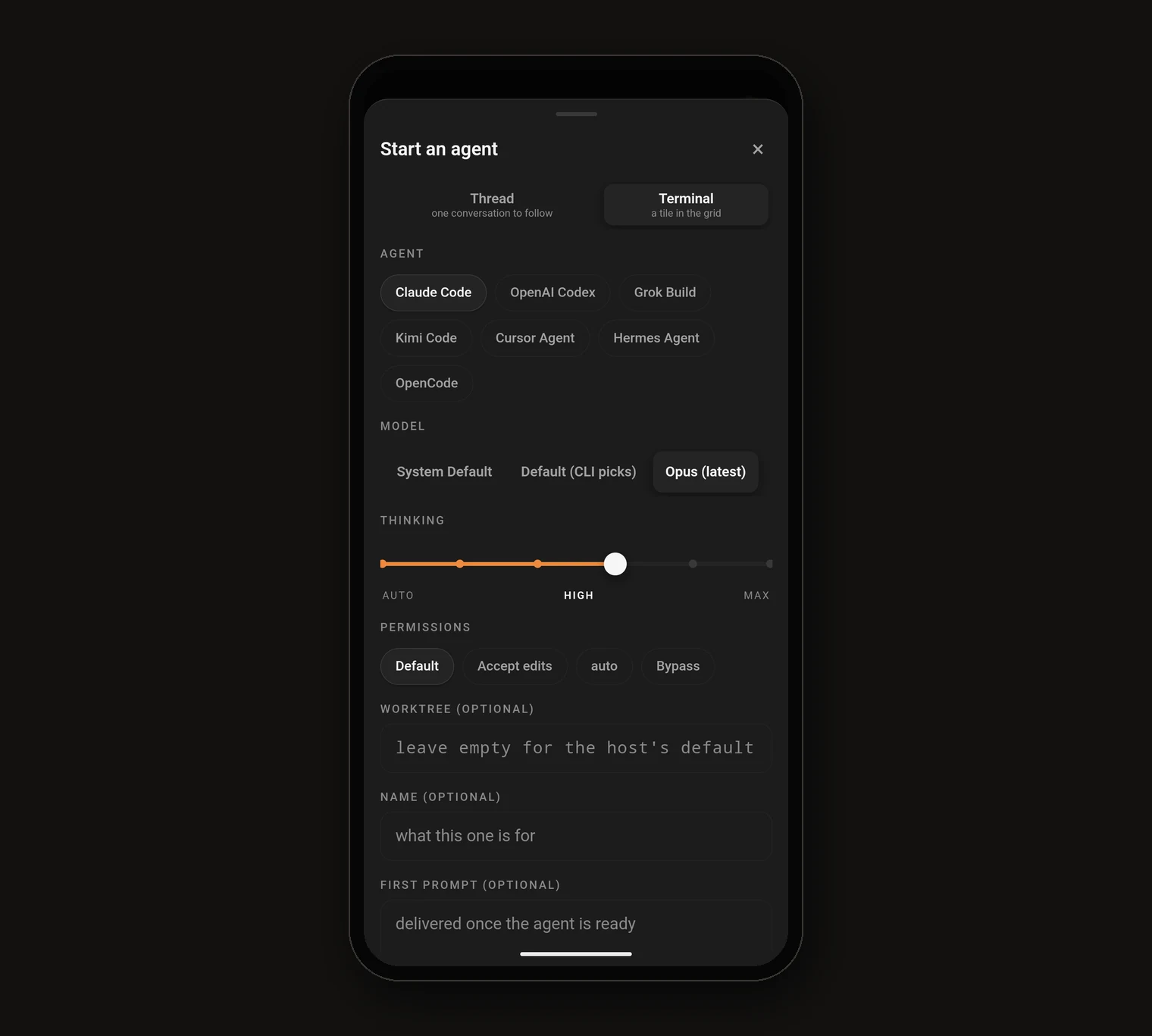
Every agent and model your desk has installed, offered on your phone.
This is where being provider-agnostic stops being a slogan. I'll kick off a Claude Code agent on the refactor and a Codex agent on the test backfill from the same sheet, standing in a queue for coffee, and both are running on my desktop before I've paid.
Threads, and switching agents mid-conversation
If you use Wrenspace threads (longer-lived, chat-first conversations that sit beside your grid), they're on the phone too, listed above your terminals with the pinned ones first. You can start a new thread, and you can triage them the way you do on the desktop: pin, snooze, archive, wake.
My favourite thing in the whole app lives here. From a thread you can switch the agent mid-conversation. Say a thread has been working with Claude Code and you want a second opinion from Codex, or one provider just hit its usage limit. Pick the new agent, leave "carry the conversation" on, and the new agent picks up where the old one stopped. The conversation even shows a small divider marking the handoff ("Continued from Claude Code · 12 turns") so you can always see who said what. Model choice turns into a per-task decision you can make from your phone, instead of a commitment you made months ago.
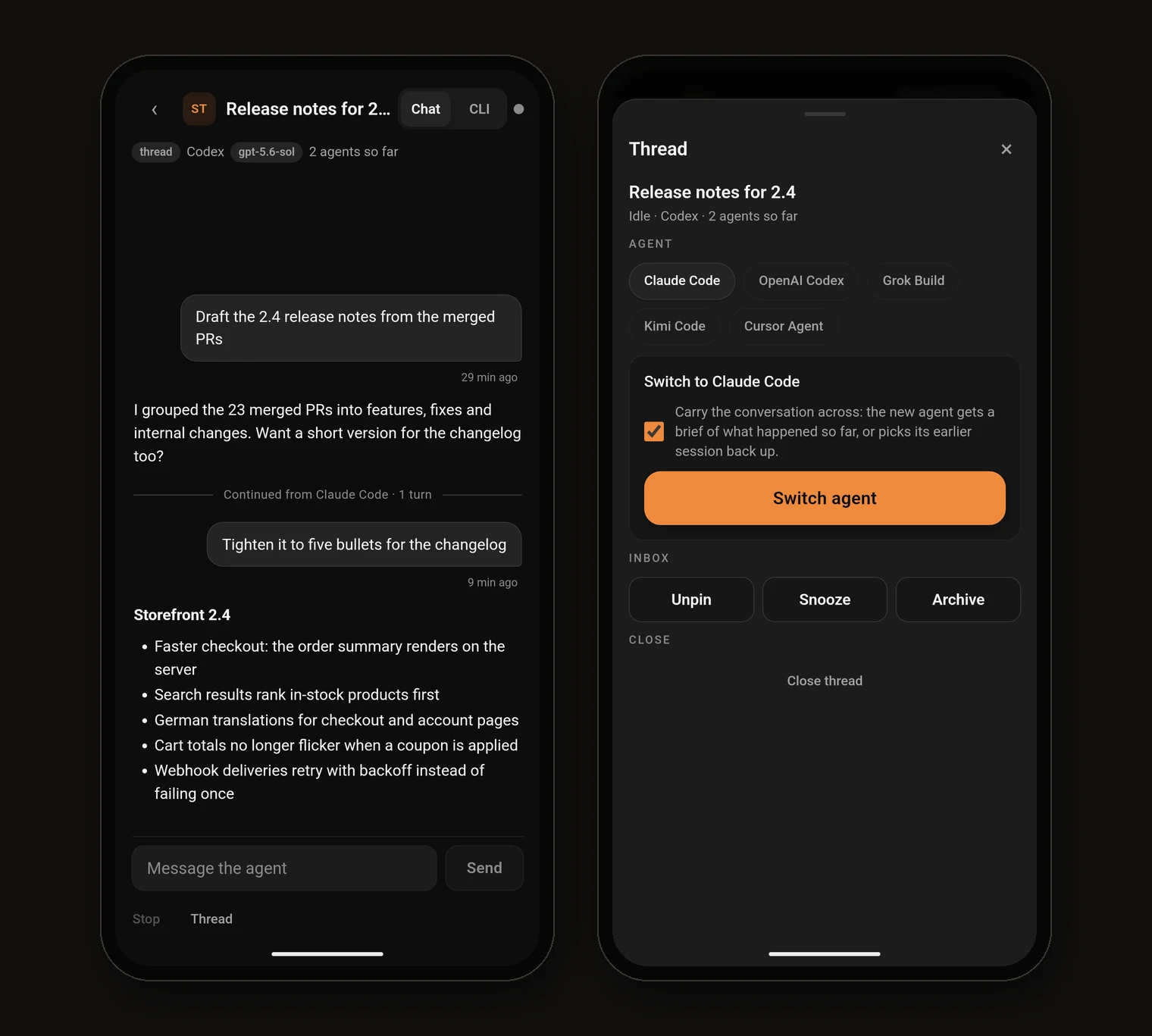
Hand a conversation to another agent and keep the whole history.
No dock? Go straight to the server
Some of you run agents on a remote box, in tmux, with no desktop involved at all. The companion app can connect to that machine directly over SSH. It checks the host key the first time and remembers it, signs in with a password or a key it keeps in its own secret store, and then lists your agent sessions, attaches to them, sends prompts, interrupts, and starts new Claude Code or Codex sessions, all inside tmux so they keep running after you put your phone away. For Claude Code it even renders the chat face by following the session's transcript.
I'll be honest about the trade-off: this direct lane is narrower than going through a dock. A bare server has no Wrenspace hooks on it, so there's no Needs-you inbox and no live working/idle status there, and starting new sessions is limited to Claude Code and Codex for now. If you want the full experience on a remote machine, open it as an ssh:// project in the dock and connect your phone to the dock. Both routes are there; you pick the one that fits.
The small things that make it feel finished
- It reconnects on its own. Walk out of Wi-Fi range and back in, and the app quietly retries, picking up your chat exactly where it left off.
- It opens your last workspace when it's nearby. Launch the app at your desk and you land straight in the project you were last using, without tapping through.
- It matches your desk. Every palette you can pick in the dock is available on the phone, generated from the same theme table, so the two never drift apart.
- The keyboard behaves. The composer stays above the on-screen keyboard, and your phone's Back button moves back through the app the way you'd expect.
What it isn't (yet)
I'd rather you hear the limits from me than discover them yourself.
- It reaches your dock over a network it can see. On the same Wi-Fi it's one tap. From elsewhere, you can type your dock's address over a VPN or an SSH tunnel, but there is no Wrenspace cloud relay. That is deliberate: your sessions don't go through us.
- No attachments on prompts yet. Text only for now.
- It's for directing agents, not writing code. I don't want to do code review on a six-inch screen, and I suspect you don't either. The phone is for unblocking, steering and starting work. The deep review still happens at the desk.
Pricing, and when you can get it
The Companion app itself is free to download. Connecting it to your dock is part of Wrenspace Pro and above (and it's included in the trial), because the dock is the thing doing the heavy lifting. Your phone signs in with your Wrenspace account for the direct SSH lane, so the same rule applies there.
Android comes first, on the Google Play Store. iOS follows soon after, and I'll post here the day it lands. In the meantime, if you're not running the dock yet, grab it at wrenspace.ai/download (Windows, macOS and Linux), so that when the app appears in the store your agents are already waiting to meet it.
The agents don't stop working when you leave the desk anymore. Now you don't have to stop directing them either.